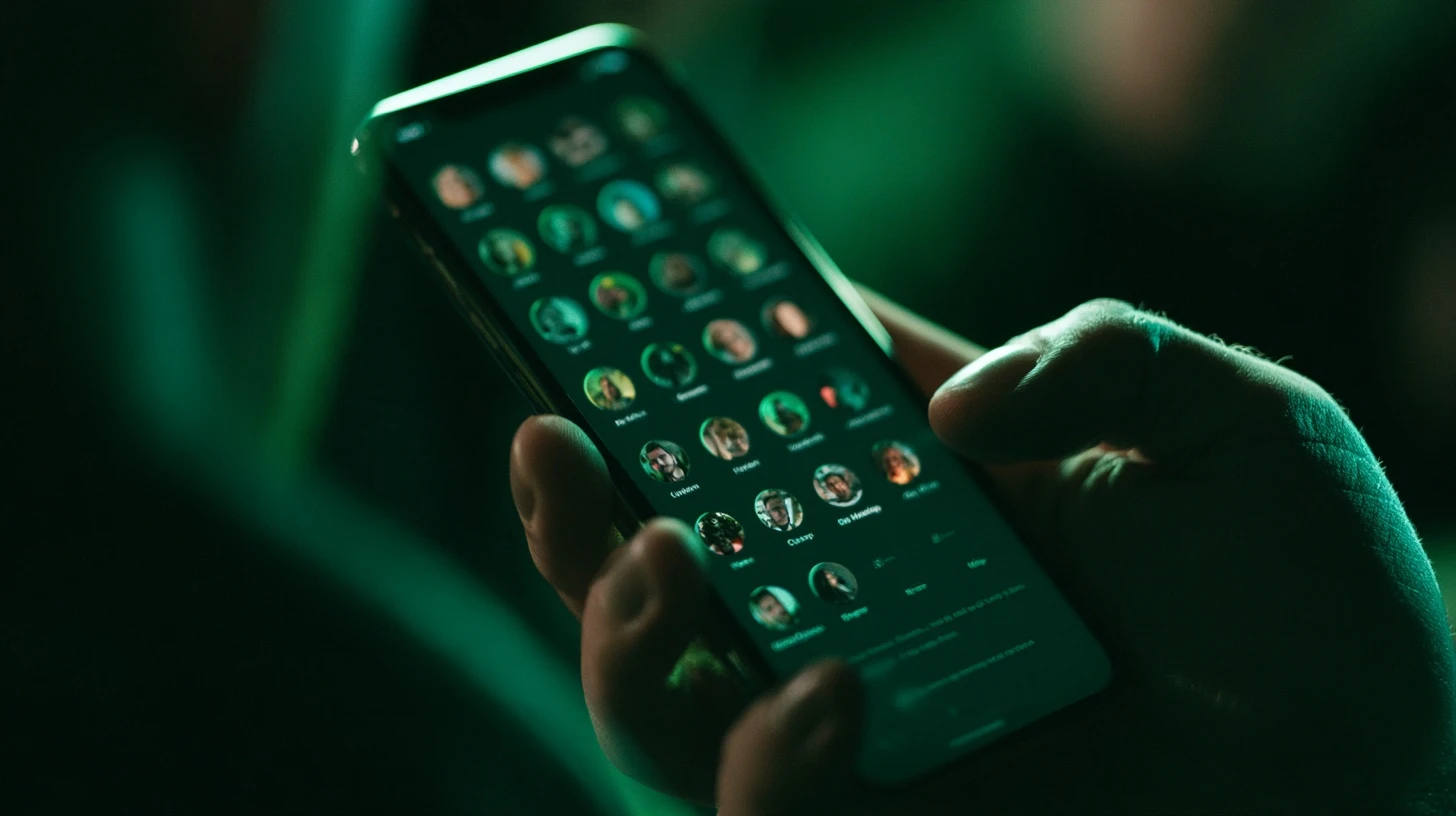
WhatsApp displays your DP smaller than any other platform — around 40 pixels in the chat list, a little larger in a contact’s profile. That single fact decides whether an attitude DP works or turns into a dark smudge. This guide covers what works specifically on WhatsApp, plus the privacy settings most people never touch.
WhatsApp DP sizes: where yours actually appears
| Location | Approximate display size |
|---|---|
| Chat list | 40 × 40 |
| Inside a chat header | 32 × 32 |
| Group member list | 40 × 40 |
| Contact info page | Up to full width |
| Call screen | Large |
Upload at 640 × 640 minimum, 1024 × 1024 ideally. WhatsApp compresses and downscales aggressively, so giving it a large clean source is the only way to keep the result sharp.
Note how small the common cases are. Your DP spends nearly all its life at 40 pixels. Choose accordingly.
Attitude DP styles that survive WhatsApp compression
WhatsApp compresses harder than Instagram or Discord. Styles that hold up:
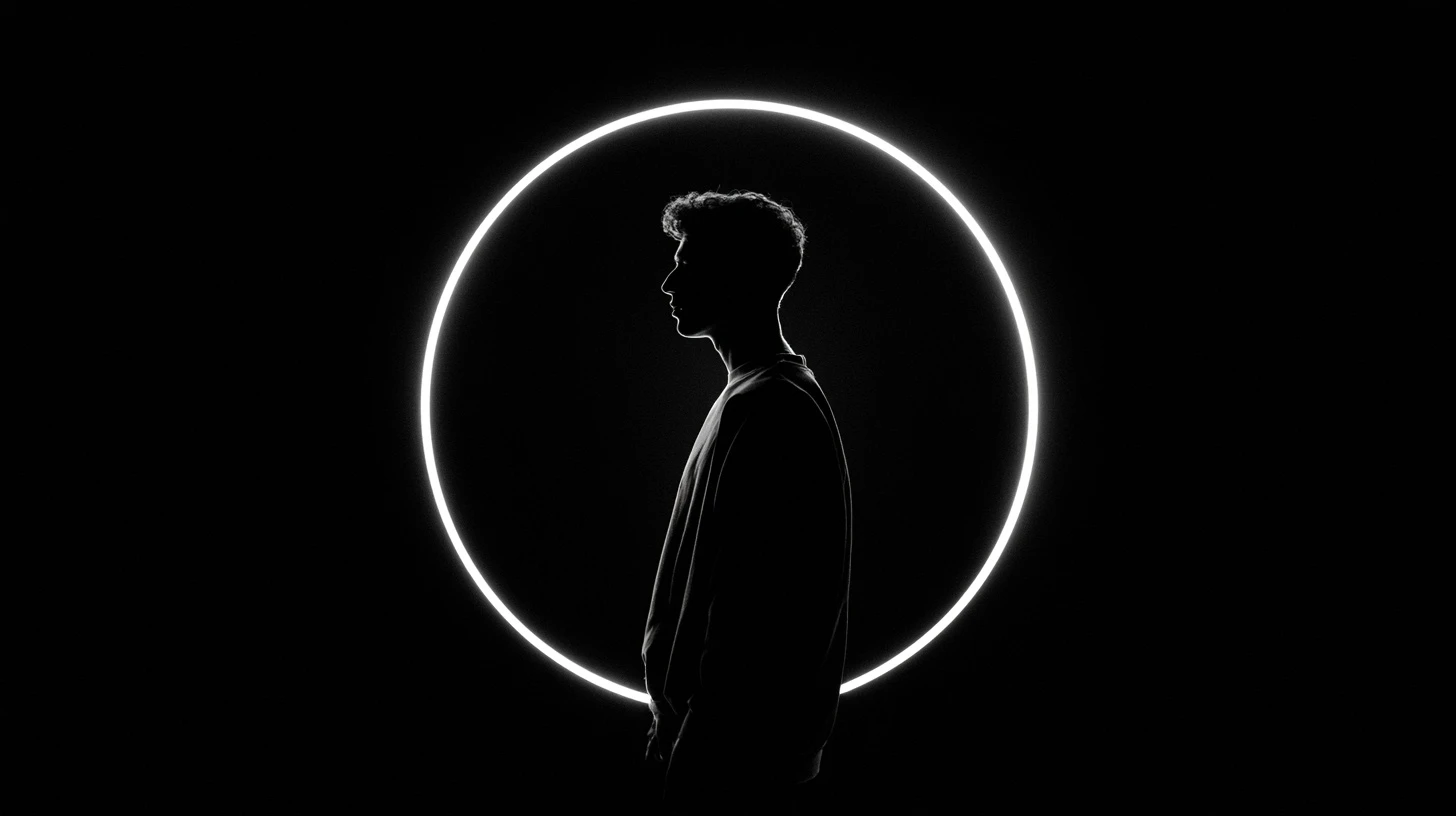
Silhouette
Pure shape against a bright background. Compression barely touches it because there’s little fine detail to lose.
Hard side light
Half the face lit, half in shadow. The hard edge survives compression; soft gradients don’t.
Single bright accent on black
A dark image with one saturated element — a red jacket, a neon sign, a bright background strip. That accent is what stays visible at 40 pixels.
Flat illustration
Cartoon or vector art with heavy outlines. The most compression-resistant option of all. Covered in detail in our cartoon attitude DP guide.
Tight crop on the face
Fill the frame with the head. A full-body shot puts your face at four pixels wide.
Styles that fail on WhatsApp
- All-black images. Popular, but at 40 pixels they’re a black circle indistinguishable from every other black circle.
- Text and quotes. Completely unreadable. If the message matters, put it in your About instead.
- Group photos. Nobody can tell which person is you.
- Wide landscape shots. The circle crop destroys them.
- Heavy grain or film filters. Compression turns grain into blocky artefacts.
The circle crop
WhatsApp crops every DP to a circle, removing roughly 21% of a square image — all from the corners.
Before uploading:
- Centre the subject.
- Leave ~10% margin so nothing touches the circle’s edge.
- Keep corners empty of anything meaningful.
- Use the in-app crop preview — it shows the exact circle.
How to change your WhatsApp DP
- Open WhatsApp and go to Settings.
- Tap your name at the top to open your profile.
- Tap the current photo, or the camera icon on it.
- Choose Gallery to pick an existing image, or Camera to take one.
- Adjust the crop — drag to reposition, pinch to zoom.
- Tap Done.
The change propagates to your contacts within a minute or two, though their app may show the old image until it refreshes.
Privacy settings worth knowing
Most people never open this menu, and it controls who can see your DP at all.
Settings → Privacy → Profile photo gives you four options:
| Setting | Who sees your DP |
|---|---|
| Everyone | Anyone with your number, including strangers and spam accounts |
| My contacts | Only people saved in your phone |
| My contacts except… | Contacts minus a list you choose |
| Nobody | No one |
“Everyone” is the default. That means any unknown number that has yours — including bulk-messaging spam operations — can see and save your profile photo. For most people “My contacts” is the sensible setting, and it costs you nothing.
This matters more than it sounds. Profile photos scraped from WhatsApp are routinely reused in fake accounts and scam profiles. Restricting visibility to your contacts removes almost all of that exposure.
Why your WhatsApp DP looks blurry
Four causes, in order of how often they’re the culprit:
- The image came from a WhatsApp chat. Anything received through WhatsApp is already compressed. Setting it as your DP compresses it a second time. Always use the original file.
- The source was too small. Below 640 pixels, WhatsApp upscales — and upscaling can’t add detail.
- It’s a screenshot. Screenshots are already lossy and usually low resolution.
- It was saved as a low-quality JPG. Use PNG for illustrations and flat colour; use a high-quality JPG for photographs.
Matching DP and About
Your About line sits directly under your name in your profile. Since text in an image is unreadable at DP size, the About line is where a message actually gets read.
A dark, minimal DP paired with a short About line does the job that a quote-image DP fails at — because one is legible and the other isn’t.
Related guides
- Very attitude DP — the full breakdown of the attitude style.
- Attitude cute cartoon DP
- Black DP for WhatsApp
- Killer attitude DP girl black
- New WhatsApp DP ideas
Frequently asked questions
What size should a WhatsApp DP be?
640 × 640 pixels minimum; 1024 × 1024 is better. WhatsApp compresses heavily, so a larger clean source gives a sharper result.
How do I stop my WhatsApp DP looking blurry?
Use the original image file rather than one received through a chat, upload it square at 1024 × 1024, and avoid screenshots.
Who can see my WhatsApp profile photo?
By default, everyone with your number. Change it under Settings → Privacy → Profile photo — “My contacts” is the sensible choice for most people.
Does WhatsApp notify people when I change my DP?
No. There’s no notification for a profile photo change.
Can someone save my WhatsApp DP?
Anyone who can see it can screenshot it. Restricting visibility to your contacts is the only meaningful control.
Why is my DP cropped badly?
WhatsApp crops to a circle, cutting the corners of a square image. Centre the subject and leave margin around it.




Leave a Reply